
Midjourney is a tool that uses artificial intelligence (AI) to generate unique images from text commands and descriptions provided by its users.
It is considered one of the most popular image generators in the world, even though its use is linked to a Discord account.
The tool is capable of generating highly detailed images, in 3D, with a painting style, and much more.
If you want to know how to use Midjourney, check out our article and learn all about its features.
What is Midjourney?
Midjourney is a tool that uses artificial intelligence to understand and transform text descriptions into high-quality images.
In short, it’s an application that interprets a user’s request to generate creative image versions.
What differentiates Midjourney from other AI tools is its accessibility.
To use its features, you need a Discord account, add Midjourney to one of its servers, and grant access to a channel where the images will be sent.
This approach was chosen by Midjourney’s founder, David Holz. According to him, distributing the platform as a smartphone app would require creating its own social experience.
Therefore, he preferred partnering with Discord, which already offers a high-quality social experience.
How to create a Midjourney account
As mentioned before, Midjourney doesn’t have its own app, so it requires an account to run within Discord.
To access the tool, you need a Discord account or you need to create a new one.
Here’s a step-by-step guide on how to create or link your account:
- Access the Midjourney website.
- Click on “Join the beta” in the bottom right corner.
- Enter the email and password you wish to use to create your account.
- Access the verification email sent by Discord.
- Finalize the process by clicking “Continue to Discord”.
If you already have a Discord account, simply link it to Midjourney:
- Access the Midjourney website
- Click on “Join the beta” or “Sign in” in the bottom right corner
- If you are not logged into your Discord account, log in
- Click on “Authorize” to link your account to Midjourney
- You will be redirected to the Midjourney server
How to use Midjourney
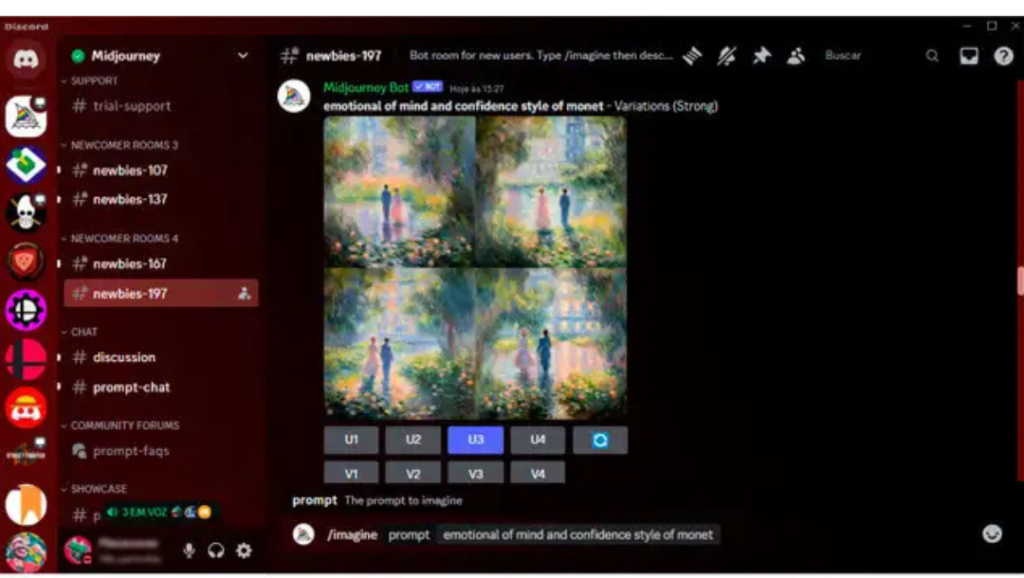
Check out the step-by-step guide on how to use Midjourney on your official server.
- Within Discord, click on the official Midjourney server icon.
- In the left sidebar, select one of the “newbie” channels.
- To send a request, first type
/imagineand press space in the text box. - The prompt will open within the text box.
- Inside the prompt, type the image idea you want to generate.
- It’s important to describe your idea well and, preferably, type the text in English for a more satisfactory result.
- After sending your first command, you will need to accept the app’s terms of use.
- Just wait for your image to be generated.
How to use Midjourney: how to save images
After generating the images using your ideas and commands, you can download them in their original quality.
- Click on the image you want to download.
- Select “Open in browser”.
- Right-click and select “Save image as”.
How can I improve the images generated with Midjourney?
A tip on how to use Midjournye is to take advantage of the features the tool offers to improve your images.
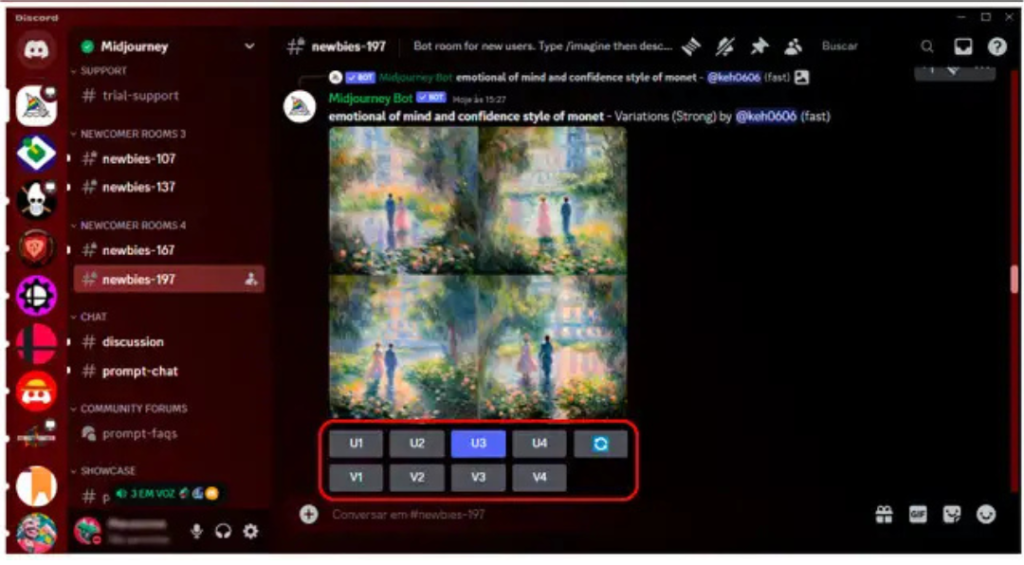
When the AI platform creates images, it will generate 4 versions of your request. Within the message that will send these 4 images, you can choose from the following commands:
- U buttons: This is the upscaling option, which can be used on one of the generated images to resize it and improve its details.
- V buttons: This is the “versions” option; it causes the application to generate a new request with variations of the chosen image.
- Redo button: This option executes the command again to redo the images.
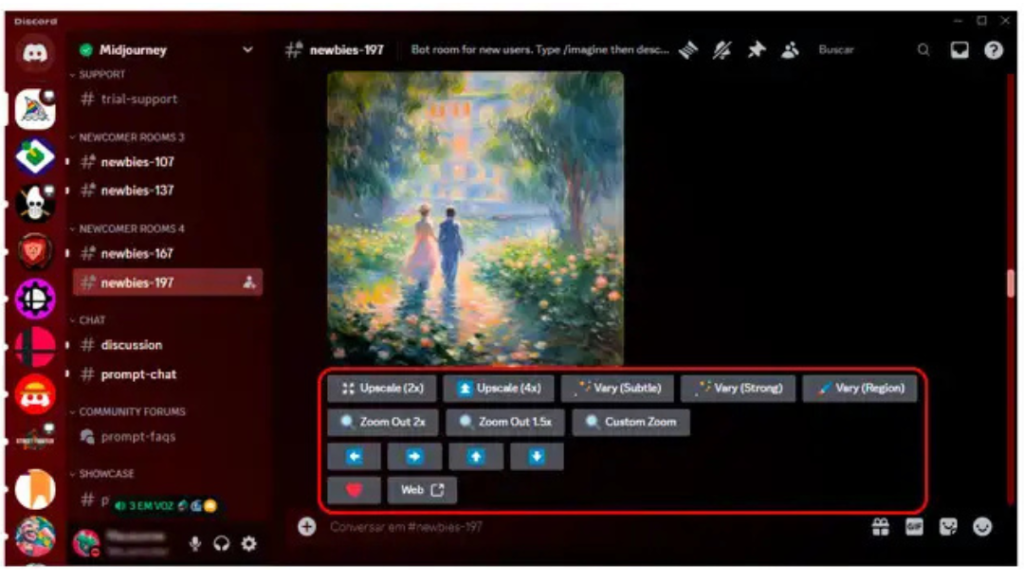
When choosing to upscale one of the image versions, it’s possible to select the size (increasing from 2x to 4x), variations, and even a Zoom Out option.
How to view the images you’ve already created with Midjourney
You can access a gallery with all the images you’ve created using Midjourney.
Simply log in to the platform and go to midjourney.com/imagine, which will display a history of all your creations.
This platform also allows you to create folders to organize your images.
Is it possible to use Midjourney for free?
A very common question about the tool is how to use Midjourney for free.
When the tool was launched, it offered a free trial period for its users.
However, due to high user demand, it is currently only possible to use Midjourney through its paid plans.
The platform uses a subscription-based monetization model, where it is possible to choose monthly or annual plans.
As of the date of publication of this article, the most basic plan can be contracted for $8 per month with an annual subscription or $10 per month with a monthly subscription.
5 tips on how to use Midjourney
Below are some tips that can help improve the results of the images generated from your requests.
1. Use styles as keywords
When writing commands to generate images, use styles to achieve results that match your chosen style.
There are several art styles that can be used to customize your ideas, such as:
- Pixar movie style
- Watercolor painting
- Van Gogh style
- Anime style
- Monet style
- Oil painting style
- Realistic style
2. Add styling
You can use the command –s (example number) to add proportional styling to the chosen number.
3. Create abstract images using the chaos command.
You can use the --chaos command (numbers from 0 to 100) to set the level of abstraction in the generated images.
Therefore, if you want to create very abstract and creative images, take advantage of this feature.
4. Proportion
It’s possible to specify the aspect ratio of the images that will be generated if you want to use them as wallpaper on computers or smartphones.
To do this, use the command --ar number:number, for example: --ar 16:9.
It’s also possible to specify the size of the image you want. Use --w (number) --h (number) at the end of your command. w defines the width and h the height.
5. Remove terms from your image.
Using the command –no (keyword) at the end of your request will exclude unwanted content from appearing in the images.
Have you learned how to use Midjourney?
We hope our article has helped you better understand how to use Midjourney and presented interesting tips for creating high-quality images.